Guide
How to sign, photograph and resize a signature for online forms
What forms ask for
Every form has its own numbers, so read your notice first. Two examples from official notices:
| IBPS | SSC | |
|---|---|---|
| Size | 140 × 60 pixels (preferred) | About 6.0 × 2.0 cm (paragraph 9.6) or 4.0 × 2.0 cm (Annexure IV); no pixel size given |
| File size | 10–20 KB | 10–20 KB |
| Format | JPG/JPEG | JPEG/JPG |
| Ink and style | Black ink on white paper, not in capital letters | Clear; blurred or miniature signatures are rejected |
From the IBPS CRP PO/MT-XVI detailed notification, Annexure III (Guidelines for scanning and upload of documents) and the SSC Combined Graduate Level Examination 2026 notice, paragraphs 9.4–9.6 and Annexure IV.
Step 1: sign on paper
- Plain white paper, with no lines, grid or printing behind the signature.
- A black ball-point or gel pen with a medium tip. A very fine pen gives thin lines that fade when the signature is shrunk to a few hundred pixels.
- Your usual signature, the one on your other documents, and not in capital letters. Never let someone else sign for you.
- A normal size, about 5–7 cm wide. Sign three or four times and pick the cleanest one.
- Don’t go over the lines again: retouched strokes look blotchy at small sizes.
Step 2: photograph or scan it
- Put the paper on a table near a window in daylight. Turn the flash off: it leaves a bright spot.
- Hold the phone flat, directly above the paper, so the signature isn’t slanted, and make sure the phone’s shadow doesn’t fall on it.
- Let the signature fill most of the picture, with a little white paper around it. Tap it to focus.
- Zoom in on the photo to check the edges are sharp. If not, take it again.
- A flatbed scanner works too: scan in colour or greyscale at 300 DPI.
Use the original photo, not a copy sent through WhatsApp or another chat app, which lowers the quality.
Step 3: clean it up and size it
A phone photo of white paper looks grey and uneven, and it is millions of pixels larger than a form allows. To fix both:
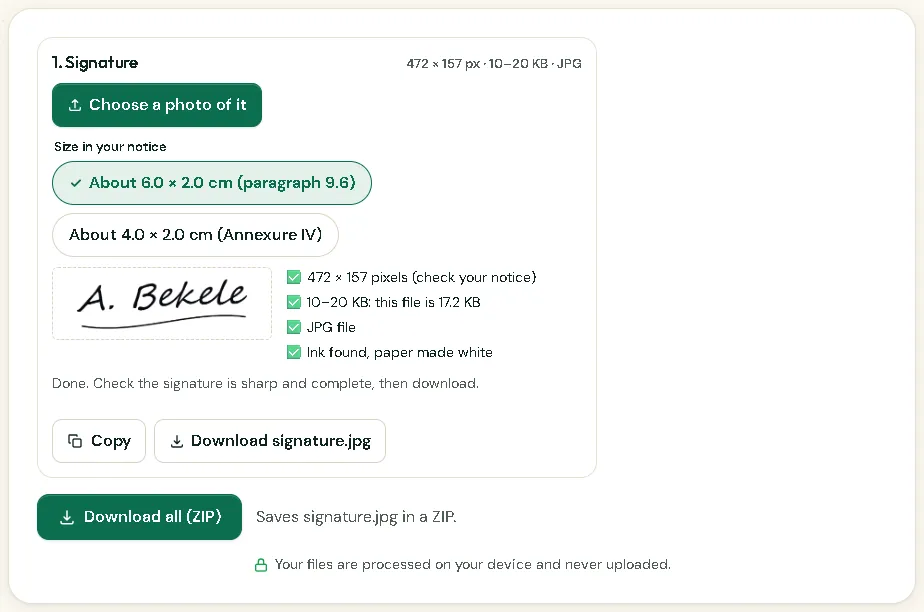
- For a portal Picsawa covers, open its page from the exam photo and signature hub, such as IBPS or SSC. Add the photo of your signature: the paper becomes white, the ink darker, and the file is made at the notice’s pixels and inside its KB range, with a checklist.
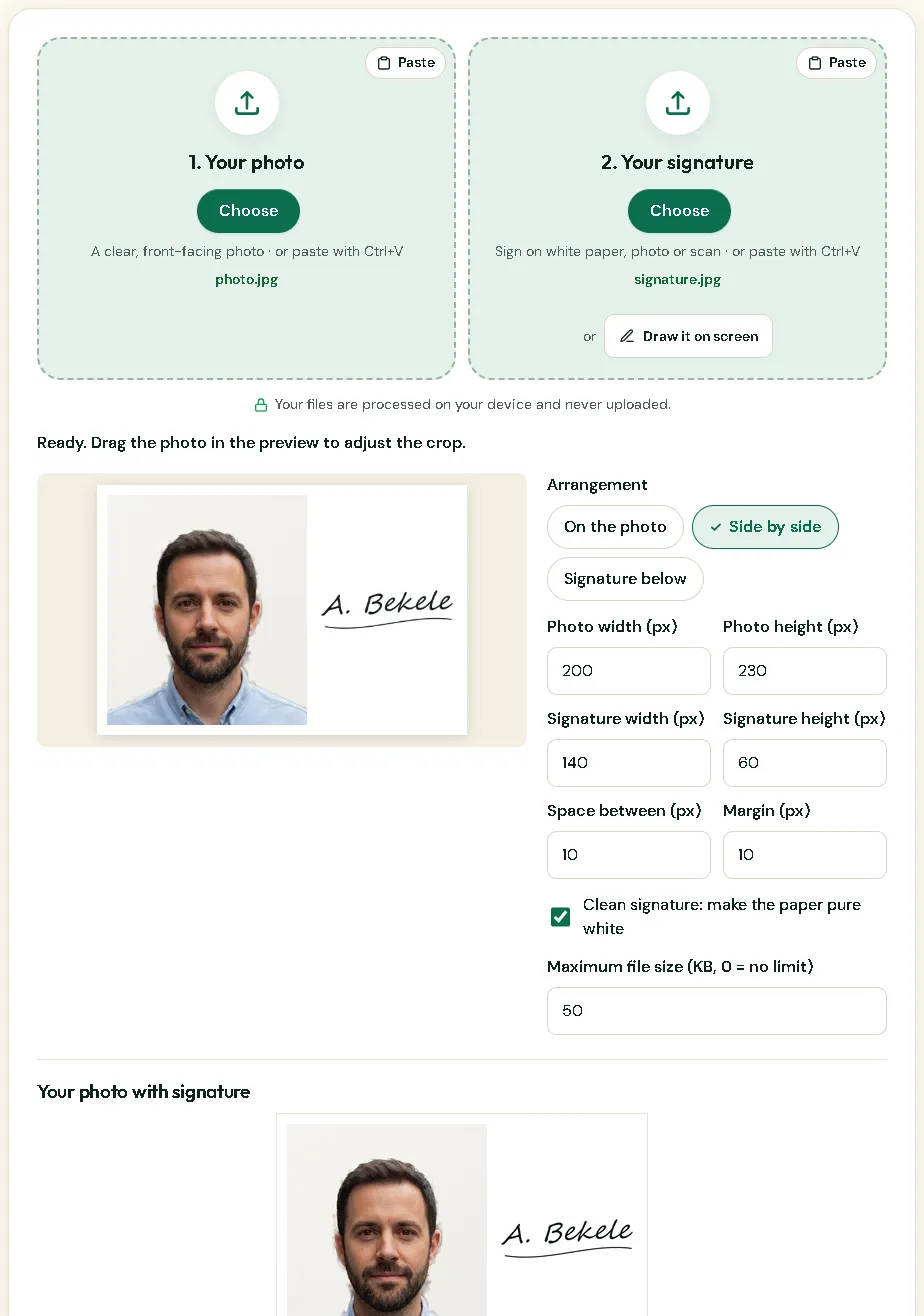
- For any other form, use Photo + Signature: choose “Side by side”, type the pixel sizes and KB limit from your notice, and download the combined image or “Signature only”.
The signature is fitted inside the box without being stretched, and nothing is uploaded.
When a notice gives only centimetres, like SSC, the pixels depend on the DPI used. Picsawa makes SSC signatures at 200 DPI (6.0 cm = 472 pixels). That choice is ours, not SSC’s, and the page says so.
Can you draw it on the screen instead?
Photo + Signature lets you sign with a finger, stylus or mouse, which is handy for informal forms. But when a notice says to sign on paper, as IBPS does (white paper, black ink), follow it and photograph a real signature. A drawn signature may also look different from the one you give on the exam day or on other documents.
Mistakes that get signatures rejected
- A signature in CAPITAL LETTERS where the notice forbids it.
- A blurred, faint or tiny signature, or one cut off at the edge.
- Grey or coloured paper, lines, or shadows behind the ink.
- The photo uploaded in the signature box, or the other way round.
- A file over the maximum, or under the minimum. A file below the minimum is rejected too; the exam pages reach it without changing the picture by adding a comment inside the file.
- Pixels that don’t match the notice, for example a square image when 140 × 60 is asked for.
How it looks in Picsawa
Screenshots of the free Photo + Signature Joiner tool, made with sample photos.
Sources
- IBPS — CRP PO/MT-XVI notification, Annexure III (PDF)
checked 6 November 2026 - SSC — Combined Graduate Level Examination 2026 notice (PDF)
checked 6 November 2026
Frequently asked questions
Should I sign with a blue or black pen?
Use what your notice says. IBPS asks for black ink on white paper. If the notice says nothing, black on white is the safest choice because it stays clear when the image is made small.
How do I make my signature 20 KB?
Open the exam page for your portal, or Photo + Signature with the signature size and a 20 KB limit, and add a photo of your signature. The file is saved as a JPG at the highest quality that fits.
Why was my signature rejected for being too small in KB?
Many notices set a minimum, such as 10 KB. A very small, plain image can fall under it. The exam pages fix this without changing the picture.
Can I reuse a signature scanned for another form?
Only if it matches the new notice’s size and rules. It is usually quicker and sharper to sign again and make a new file.
Is my signature uploaded to Picsawa?
No. The cleaning and resizing happen in your browser, and the files stay on your device.